
Windows Ping Tray Widget
A lightweight Python tool to display real-time ping in Windows 11 system tray
📊 About The Project
Windows Ping Tray Widget is a lightweight Python application that displays your real-time internet ping directly in the Windows 11 system tray. This simple yet useful tool helps you monitor your network latency at a glance without opening any additional windows or applications.
Perfect for gamers, remote workers, or anyone who needs to keep an eye on their network performance throughout the day.
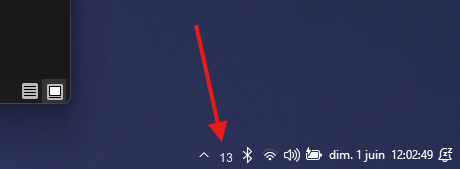
I developed this tool in order to check my internet reliability on my pretty bad home internet connection.
✨ Key Features
- Real-time Monitoring: Continuous ping display updated in the system tray
- Context Menu: Right-click access to quick actions
- Open GitHub repository
- Quit application
- Auto-startup: Automatic launch with Windows using provided batch script
- Lightweight: Minimal resource usage, runs silently in the background
- No Console Window: Uses
pythonw.exefor a clean, distraction-free experience - Easy Installation: Automated setup with batch script
🛠️ Technical Stack
- Language: Python 3
- Libraries:
pystray- System tray icon managementpillow- Image processing for tray iconping3- Network ping functionality
- Platform: Windows 11 (compatible with Windows 10)
- Execution: pythonw.exe (background process)
📦 Installation
Prerequisites
- Python 3.x installed and added to PATH
- Windows 10/11
Quick Setup
Clone or download the repository
git clone https://github.com/KaazDW/Windows-Ping-in-TrayTaskbar.git
cd Windows-Ping-in-TrayTaskbar
Install dependencies
pip install pystray pillow ping3Enable auto-startup
- Double-click
automated-startup.bat - The script will:
- Copy files to
%appdata%\PingTaskbarWidget - Create a startup shortcut
- Launch automatically at every Windows startup
- Copy files to
- Double-click
🚀 Usage
- Manual launch: Run
taskbar.py - Automatic launch: Configured via the batch script
- View ping: Check the system tray for real-time ping value
- Access menu: Right-click the tray icon for options
🗑️ Uninstallation
Two methods available:
Method 1: Automated
# Run the uninstall script
uninstall.bat
Method 2: Manual
- Delete
%appdata%\PingTaskbarWidgetfolder - Delete
PingTaskbarWidget.lnkfrom Startup folder (shell:startup)
💡 What I Learned
This project helped me explore:
- System Tray Integration: Working with Windows system tray APIs through Python
- Network Monitoring: Implementing real-time ping functionality
but the main learning was how bad my actual home internet connection is..
🔧 Technical Notes
- The script uses
pythonw.exeto prevent console window from appearing - Requires Python to be properly installed and accessible in system PATH
- Ping target can be customized in the source code
- Update interval is configurable
🔗 Links
- GitHub Repository: KaazDW/Windows-Ping-in-TrayTaskbar